AI Image Upscale: How to Increase Image Resolution and Keep Quality High

You have a photo that looks fine on your phone, but the moment you stretch it across a website banner, a print or a large monitor, it turns soft and blocky. AI image upscale tools exist to fix exactly that problem. Instead of simply stretching pixels, an AI image upscaler studies the picture and predicts the detail that a larger version should contain.
That sounds like a miracle, and the marketing around it often treats it like one. The reality is more useful: AI upscaling can produce impressive results on the right images, and disappointing ones on the wrong images. This guide explains how it works, where it shines, where it fails, and how to get the best out of any online image upscaler without overpaying or risking your private photos.
What Is AI Image Upscale?
AI image upscale is the process of increasing an image’s pixel dimensions with a machine-learning model, usually a deep neural network trained to reconstruct detail. If you upscale a 1,000 × 750 pixel photo by 2x, you get a 2,000 × 1,500 pixel file. The question is what fills those new pixels.
With ordinary resizing, the software calculates each new pixel as an average of its neighbours. That keeps the picture the same, only bigger and smoother, so it tends to look blurry. With AI upscaling, the model has learned from many pairs of low-resolution and high-resolution images what edges, skin, fabric, foliage and text usually look like at higher resolution. It uses that learned experience to draw a sharper, more detailed guess.
The key word is guess. An AI upscaler produces plausible detail, not recovered detail. That distinction matters throughout this article.
You will see the same idea described as image super-resolution, AI image enlargement, photo AI upscale or simply “enlarge pics” in search results. They all refer to the same family of techniques.
How Does AI Image Upscaling Work?
Deep learning and super-resolution
The research field behind this is called super-resolution. A neural network is shown a very large number of images. Each one is deliberately degraded (shrunk, blurred, compressed, given noise) and the network is trained to reconstruct the original. After enough training, it can take a new low-resolution image and output a higher-resolution one.
The Real-ESRGAN project on GitHub is a well-known open-source example. Its authors describe it as aiming at practical algorithms for general image and video restoration, and its model is trained using purely synthetic data, meaning the degradations were simulated rather than collected from real damaged photos. You can read how it works, and which model variants exist, in the Real-ESRGAN repository.
Pixel reconstruction and detail enhancement
The network does not just copy pixels. It looks at patterns across the whole image: where an edge runs, how a texture repeats, what a face or a leaf typically looks like. It then generates new pixels that fit those patterns. This is why a good result can show crisper eyelashes, cleaner edges on buildings and finer texture in fabric than any traditional enlargement could.
Noise reduction and sharpening
Many models handle cleanup at the same time. Compression blocks from an over-saved JPEG, grain from a night shot and soft edges are all treated as degradations to undo. Some tools expose a denoise setting so you can balance smoothness against texture; Real-ESRGAN’s general model, for example, includes a denoising-strength option to avoid over-smoothed results.
Why results vary so much
The output depends heavily on the input. A sharp, well-exposed photo at modest size gives the model plenty to work with. A tiny, heavily compressed thumbnail gives it very little, so it fills the gaps with guesses that can look odd. The model’s training data matters too: one trained mostly on photographs may struggle with line art, and one trained on anime may flatten a portrait.
Why Should You Use an AI Image Upscaler?

People reach for an AI image upscaler for practical reasons, not curiosity:
- Old and blurry photos. Scans of family prints and early digital camera photos are often small by modern standards. Upscaling makes them usable on current screens.
- Product images. Sellers sometimes receive supplier photos that are smaller than a marketplace requires. Upscaling can help meet a minimum dimension, though you should always check the result for artefacts.
- Social media content. A cropped frame from a larger photo can fall below the size a platform displays well.
- Photography. After heavy cropping, upscaling restores enough pixels to print or share at a reasonable size.
- Digital artwork. Older or smaller artwork files can be enlarged for new uses.
- Presentations and marketing materials. A logo or photo that looked acceptable in a document can look soft on a projector or in a banner.
- Printing and larger displays. Print needs many more pixels than a screen. At 300 pixels per inch, a 1,000 × 750 pixel image prints at only about 3.3 × 2.5 inches. A 4,000 × 3,000 pixel version reaches about 13.3 × 10 inches.
In each case the benefit is the same: more pixels, with better edges and fewer visible blocks than a plain stretch would give.
How to Upscale an Image Online Using AI
The exact buttons differ between services, but the workflow is almost always the same. Here is a beginner-friendly process that works with most online image upscalers.
- Choose a suitable image. Start with the best version you have: the original file, not a screenshot of it or a copy shared through a messaging app that compressed it. Sharper and less compressed input gives better output.
- Open an online AI image upscaler. Pick a service whose terms, privacy policy and limits you have read (more on that below).
- Upload the image. Check the supported formats first. JPG, PNG and WebP are the safest bets.
- Select the enhancement or enlargement setting. Start with 2x. Many tools also offer modes such as photo, illustration or anime, and denoise or face-enhancement options. Match the mode to the picture.
- Preview the result. Zoom in on faces, text, edges and fine patterns. Look for waxy skin, warped lettering or invented details.
- Download the enhanced image. Prefer PNG when you plan to edit further, and a high-quality JPG or WebP when file size matters.
- Check the dimensions and quality. Confirm the pixel dimensions are what you expected, then view the file at the size you will actually use it. An image that looks perfect zoomed to fit a monitor can still show flaws at print size.
A note about a tool. The free resizer on ImageResize.online changes image dimensions and format directly in your browser, using standard canvas scaling. It is a resizer and compressor, not an AI model, so it does not invent new detail. It is useful for the finishing steps around an AI workflow, such as shrinking an upscaled file to web dimensions or exporting it as WebP. If you need real AI enhancement, use a dedicated AI upscaler for that step.
AI Image Upscale Free: Can You Upscale Images Without Paying?
Often you can, within limits. Many services offer an AI image upscale free tier, and open-source software lets you run models on your own computer at no cost if your hardware can handle it. Real-ESRGAN, for example, provides portable executables for Intel, AMD and Nvidia GPUs, and its repository is published under the BSD-3-Clause licence.
Free online tiers commonly come with trade-offs. Check each of these before you rely on one:
- Usage limits. A daily or monthly cap on images or on credits.
- File-size and resolution limits. Free output may be capped well below what you need for printing.
- Watermarks. Some tools stamp free results.
- Queues and speed. Free jobs may wait behind paying users.
- Privacy and retention. Free services still process your files on a server. Read how long files are kept and whether they are used to improve models.
- Commercial use. A free tier may allow personal use only. If you sell products or publish for a business, check the licence terms.
Premium plans usually remove limits and add batch processing or higher output sizes. Whether that is worth paying for depends on how many images you process and what they are for. A single family photo rarely justifies a subscription; a shop with hundreds of product images might.
2x vs. 4x AI Image Upscaling
The scale factor describes how much each side of the image grows. 2x doubles the width and height, so the image contains four times as many pixels. 4x quadruples each side, producing sixteen times as many pixels.
Here is a simple example using a 1,000 × 750 pixel photo:
| Scale | Dimensions | Total pixels | Pixels vs. original |
| Original | 1,000 × 750 | 750,000 | 1x |
| 2x | 2,000 × 1,500 | 3,000,000 | 4x |
| 4x | 4,000 × 3,000 | 12,000,000 | 16x |
A 4x result needs the model to invent fifteen of every sixteen pixels. That is a lot of guessing, which is why bigger is not automatically better.
Use 2x when the source is reasonably sharp and you need modest growth: a social post, a website image, a slightly cropped photo. The model has enough real information to stay faithful.
Use 4x when the target really requires it, such as a large print from a small file, and you have a clean source. Inspect the result carefully, because artefacts become more likely as the factor rises.
A useful habit: if 4x looks overworked, run 2x instead, then compare. You can also upscale 2x and resize down to the exact dimensions you need, which often looks more natural than a single extreme jump.
Best AI Image Upscaling Tools Compared
Not all AI image upscalers work in the same way. Some focus on preserving the original details of a photograph, while others use generative AI to recreate textures and add visual detail. The right choice depends on your image type, desired output size, budget, and whether you prefer an online tool or desktop software.
Here are six popular AI image upscaling tools worth considering.
1. Topaz Gigapixel
Best for: Professional photo enlargement
Topaz Gigapixel is a dedicated AI image upscaling application designed for photographers, designers, and professionals who need larger images without relying on ordinary pixel stretching. It offers specialized AI models for different image types and supports custom output dimensions.
Key advantages:
- Multiple AI models for different image types.
- Advanced detail recovery and enlargement.
- Supports batch image processing.
- Available for Windows and macOS.
Limitation: It is a paid professional application, and choosing the right AI model may require some experimentation.
2. Upscale
Best for: Free desktop image upscaling
Upscayl is a free, open-source image upscaling application. It uses AI models, including Real-ESRGAN, to improve the resolution of low-quality images. Unlike browser-based services, its desktop version processes images locally on a compatible computer.
Key advantages:
- Free and open-source desktop software.
- Available for Windows, macOS, and Linux.
- Supports multiple AI models.
- Useful for enlarging photographs and digital artwork.
Limitation: Performance depends on compatible graphics hardware. It also requires installation, making it less convenient for people who prefer browser-based tools.
3. Let’s Enhance
Best for: Online image upscaling and e-commerce
Let’s Enhance is a browser-based AI image enhancement platform designed for people who want to enlarge images without installing desktop software. It is particularly useful for product photography, marketing graphics, and print preparation.
Key advantages:
- Works directly in a web browser.
- Offers AI image enlargement and enhancement.
- Useful for product images and print projects.
- Supports batch-oriented workflows.
Limitation: Processing uses an online credit-based system, so frequent users should check the available plans and image limits.
4. Adobe Super Resolution
Best for: Photographers using Adobe software
Adobe Super Resolution is designed to increase image dimensions while preserving important visual details. It is available through Adobe Camera Raw and Lightroom workflows, making it a practical choice for photographers who already use Adobe’s editing software.
Key advantages:
- Integrates with established Adobe photo-editing workflows.
- Doubles the width and height of an image.
- Useful for RAW photographs and detailed images.
- Keeps the original image available for further editing.
Limitation: It is not a standalone browser-based upscaler and requires compatible Adobe software.
5. Remini
Best for: Portraits and old photographs
Remini is an AI photo enhancement service particularly known for improving faces, portraits, and older photographs. It can help make soft or low-resolution facial details appear clearer.
Key advantages:
- Simple enhancement workflow.
- Particularly useful for portraits and selfies.
- Can improve the appearance of older photographs.
- Available through mobile applications and online services.
Limitation: AI face enhancement can sometimes change facial details rather than accurately recover the original information. Always compare the result with the original photograph.
6. Magnific AI
Best for: Creative and generative upscaling
Magnific AI is aimed at users who want more than a basic increase in image dimensions. Its generative approach can add visual texture and detail, making it useful for AI-generated artwork, illustrations, and creative projects.
Key advantages:
- Generative detail enhancement.
- Useful for AI artwork and illustrations.
- Offers creative control over the enhancement process.
- Suitable for users seeking more visually detailed results.
Limitation: Generative enhancement may introduce details that were not present in the original image. This can be undesirable for authentic photographs, product labels, and images where accuracy matters.
AI Image Upscaler Comparison Table
| Tool | Best For | Platform | Main Advantage | Main Limitation |
|---|---|---|---|---|
| Topaz Gigapixel | Professional photography | Desktop | Advanced AI models | Paid software |
| Upscayl | Free upscaling | Desktop | Free and open source | Hardware requirements |
| Let’s Enhance | Online image enhancement | Web | Convenient browser workflow | Credit-based usage |
| Adobe Super Resolution | Professional photo editing | Desktop | Adobe integration | Requires Adobe software |
| Remini | Portraits and old photos | Mobile/Web | Face enhancement | Can alter facial details |
| Magnific AI | AI art and creative images | Web | Generative detail | May invent visual details |
Note: Features, supported formats, free allowances, and subscription prices can change. Check each provider’s official website for current plan details.
Which AI Image Upscaler Should You Choose?
The best tool depends on what you want to achieve:
- For professional photography: Topaz Gigapixel is worth considering for its specialized models and detailed controls.
- For free desktop upscaling: Upscayl is a strong option, especially for users who want local processing.
- For online image enhancement: Let’s Enhance offers a convenient browser-based workflow.
- For Adobe users: Super Resolution is a practical choice if you already edit photographs in Lightroom or Camera Raw.
- For portraits: Remini is worth considering for face-focused enhancement.
- For AI artwork: Magnific AI is useful when creative detail generation is more important than strict preservation of the original image.
Before choosing a paid service, try the available free options or trial credits with the same original photograph. Compare the results at 100% zoom, paying attention to faces, text, edges, textures, and unwanted artifacts.
AI Image Upscaling vs. Traditional Image Resizing
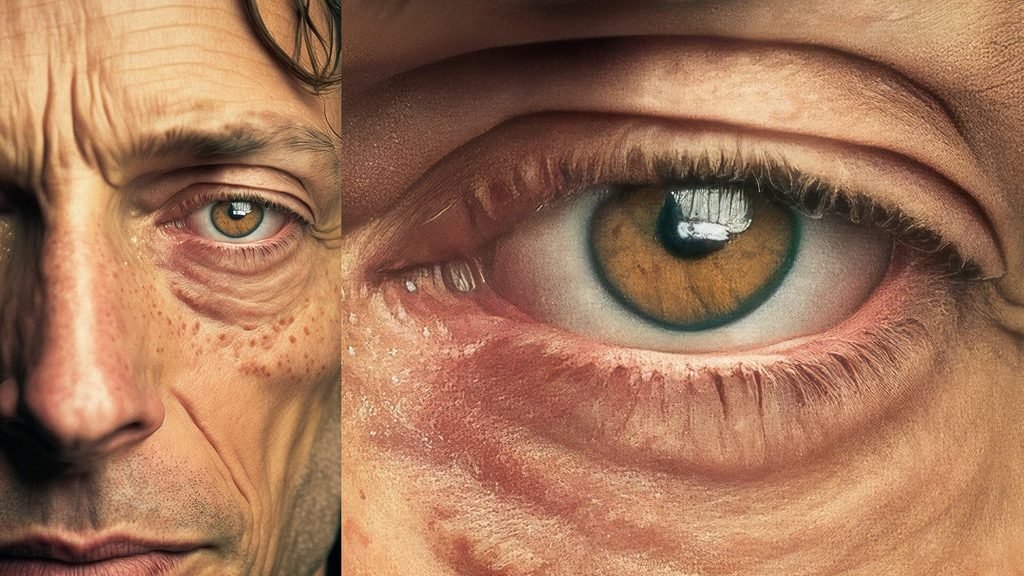
Traditional resizing relies on interpolation, a mathematical way of estimating new pixel values from nearby ones. Common methods include nearest-neighbour, bilinear, bicubic and Lanczos. The OpenCV documentation lists several of these as options for its resize function, which shows how standard they are across imaging software. Interpolation is fast, predictable and never invents anything, but it cannot add real detail, so enlarged images look soft.
Sharpening filters can make that softness look crisper by increasing edge contrast, but they also amplify noise and create halos. Manual editing can do excellent work, but it takes skill and time.
| Feature | Traditional resizing | AI image upscaling |
| Method | Mathematical interpolation | Neural network that predicts detail |
| Detail added | None; smooths existing pixels | Plausible new detail |
| Speed | Near instant, runs anywhere | Slower; may need a server or GPU |
| Risk of artefacts | Blur, jagged edges | Invented textures, warped text, odd faces |
| Predictability | Very high | Varies by image and model |
| Best for | Downsizing, small enlargements, exact dimensions | Enlarging photos, restoring old or soft images |
| Cost | Usually free | Often free tier plus paid plans |
The honest conclusion is that neither wins everywhere. Reducing a large image for a web page is a job for ordinary resizing, which does it perfectly well. Enlarging a small photo is where AI has a genuine edge.
Best Uses of AI Image Upscaling
Photography. Portraits, landscapes and street photos usually respond well, especially when the source is clean. Be cautious with faces: a model may smooth skin until it looks plastic.
E-commerce product photos. Clean, well-lit products on plain backgrounds upscale nicely. Check labels, logos and small text for distortion, because wrong lettering on a product image can mislead customers.
Old pictures. Scanned prints benefit from the combined noise reduction and enlargement. Expect some fabricated detail in heavily damaged areas.
Digital art and anime. Models trained for illustration keep clean lines and flat colour better than photo models. Real-ESRGAN, for instance, publishes models specifically optimised for anime images.
Pixel art. General AI models often smooth away the deliberate blocky look. Nearest-neighbour scaling, which preserves hard pixel edges, is usually the better choice, or a tool built specifically for pixel art.
Screenshots and documents. Text is where AI most often goes wrong. It may tidy letters into the wrong characters. For scanned documents, specialised document or OCR tools suit the job better.
Social media images. Upscaling helps when a platform demands larger dimensions than your file offers, but a clean original is always better than an enlarged copy.
For line art, logos and icons, consider a vector format such as SVG instead. MDN’s image file type guide explains that vector images can be drawn accurately at any size, which no raster upscaler can match.
How to Make a Blurry Image Clear With AI
People often search “clear blurry image” or “AI to unblur images” and expect the same tool to do everything. In fact there are two separate problems:
- Low resolution means there are too few pixels. This is what upscaling addresses.
- Blur means the existing detail is smeared, either from camera shake, missed focus or motion. This calls for deblurring.
Some AI tools combine both. Others only do one. Here is a practical approach to unblur an image online:
- Decide which problem you actually have. If the picture is small but in focus, upscale. If it is large but soft, try a deblur or sharpen option.
- Apply a moderate amount of enhancement first. Heavy sharpening creates halos around edges and exaggerates noise.
- Use denoise settings carefully. Too much removes natural texture and leaves a waxy, painted look.
- For pixelated or blocky images, a model that reduces compression artefacts can help, a process some people call depixelate images.
- Zoom in at 100 percent and compare with the original before accepting the result.
Be realistic about severe blur. If a face is so out of focus that features are not visible, AI can only invent a face, not recover the real one. That matters if accuracy matters, for example in evidence, identification or documentation.
Can AI Increase Image Resolution Without Losing Quality?
The accurate answer is: it can increase pixel dimensions without making the picture look worse, and often it can make it look noticeably better, but it cannot recover information that was never captured.
A camera records a finite amount of detail. If a distant sign was only three pixels wide, its text is not in the file. An AI model can produce something that looks like a sign, but it is a statistical guess, not the original. This is why you should treat upscaled images as improved representations rather than faithful records.
Excess enhancement also introduces problems:
- Skin that looks airbrushed.
- Repeating or unnaturally regular textures.
- Wrong details, such as altered letters or extra fingers.
- Edge halos from over-sharpening.
So “increase image resolution without losing quality” is a reasonable goal when the source is decent and the scale is moderate. It is not a promise that any image can be turned into a pristine large version.
How to Choose the Best AI Image Upscaler
There is no single best AI image upscaler for everyone. Choose by how well the tool fits your images and your priorities:
- Output quality. Test it on your own images, not just the examples on the website. Zoom in.
- Supported formats. Confirm that it accepts your files and exports a format you can use. For general guidance on formats, MDN’s guide notes that PNG suits screenshots, diagrams and transparency, JPEG suits photographs, and WebP supports both lossy and lossless compression.
- Maximum resolution. Check the largest output size, especially if you need a print.
- Processing speed. Fast matters if you have many images.
- Ease of use. A clear preview and sensible defaults save time.
- Free usage limits. Understand caps, watermarks and queues.
- Privacy and file handling. See the privacy section below.
- Batch processing. Essential for product catalogues.
- Commercial-use terms. Confirm you may use results for business.
- Transparency about limitations. Trustworthy tools admit what AI cannot do. Be wary of any service that promises perfect results from any image.
If you are comfortable with software, open-source models run locally and keep your files on your own machine. If not, a reputable online image upscaler with clear terms is the simpler path.
Common AI Image Upscaling Mistakes to Avoid
Over-sharpening. More is not better. Oversharpened images look harsh and unnatural.
Enlarging excessively. Going 8x on a tiny file just gives the model more to invent. Upscale in sensible steps and stop when it looks right.
Ignoring artefacts. Inspect faces, text, hands and fine patterns every time. Problems that look minor at thumbnail size are glaring at full size.
Uploading heavily compressed files. Feeding in a low-quality copy gives the model compression damage to work around. Always use the best original.
Using the wrong mode. A photo model on cartoon art, or an anime model on a portrait, gives poor results. Match the mode to the content.
Skipping the final check. Compare the output with the source and view it at its intended size, whether that is a phone screen, a monitor or a printed page.
Letting the result replace the original. Keep the original file. You may want to try another tool or setting later.
Is AI Image Upscaling Safe for Private Photos?
It depends on the tool. Most online upscalers send your image to a remote server for processing, and that raises real questions for personal or sensitive pictures. Before uploading, check:
- The upload policy. Does the service say what it does with your files?
- Data retention. How long are images stored, and are they deleted automatically?
- Deletion options. Can you delete files yourself?
- Model training. Are uploads used to train or improve models? Is there an opt-out?
- Account and sharing. Are results private by default?
For very sensitive images, such as identification documents, medical images or private family photos, consider avoiding third-party uploads altogether. A locally installed open-source tool processes the image on your own computer. Google’s guidance on trustworthy content also stresses clear background information about who runs a site, so look for an About page, contact details and a privacy policy before trusting a service.
Frequently Asked Questions
Can AI make a photo higher resolution without losing quality?
It can make a photo larger without the blocky look of ordinary enlargement, but it cannot restore detail that was never captured. Small, heavily compressed or very blurry photos may show smoothing, odd textures or invented details. Moderate enlargements (2x) from a decent original give the best results.
Can AI upscale an image for free?
Yes. Some upscalers are free, including open-source tools such as Real-ESRGAN and the Upscayl desktop app that is built around it, while many online tools offer limited free use before charging. Check each tool’s free limits and privacy policy before uploading personal photos.
3. What is the best AI imageCan I use AI to improve the resolution of a blurry image?
Sometimes. AI can sharpen mild blur and reduce noise, but it cannot reliably rebuild detail from a severely out-of-focus photo. Faces and text are the riskiest areas, since the AI may alter them. Always compare the result with the original.
4. Can AI increase image resolution without losing quality?
It can increase pixel dimensions and often improve apparent sharpness, but it estimates detail rather than recovering it, so results are never guaranteed to match the original scene.
5. How do I make a blurry image clear?
Identify whether the problem is low resolution or true blur. Use upscaling for the first and deblur or sharpen tools for the second, applying them in moderation.
6. Is AI image upscaling better than traditional resizing?
For enlarging small photos, usually yes. For shrinking images or making exact-dimension changes, traditional resizing is faster, predictable and entirely adequate.
How much can AI upscale an image?
Most tools offer 2x and 4x, and some go higher. Each step makes the AI invent more of the picture, so 2x is usually safest. If you need a bigger result, upscale in two steps and check the quality at each one.
8. Can I upscale images directly in my browser?
Some tools run models in the browser, but many send the image to a server. Check the privacy policy to see where processing happens.
9. Does AI image upscaling work on old photographs?
Often well, especially for scans that are sharp but small. Heavy damage or fading will still show visible guesswork.
10. Can AI upscaling improve text in screenshots?
Sometimes, but text is a common failure point. Letters can be redrawn incorrectly, so verify every word. For documents, OCR or vector recreation is safer.
11. What image formats are suitable for AI upscaling?
JPG, PNG and WebP are widely supported. Start with the least compressed original and save the result as PNG if you plan to edit it further.
12. Is it safe to upload private images to an online AI upscaler?
Only if you trust the service’s privacy terms. For highly sensitive pictures, use a local tool that keeps files on your own device.
What To Know?
AI Image Upscale technology gives you a real way to enlarge small photos, clean up noise and rebuild believable detail, which ordinary resizing simply cannot do. It works best with clean sources, moderate scale factors and the right mode for the content. It works worst when you expect it to recover information that was never captured.
Try a simple workflow on one image today: upscale at 2x, compare it with the original and finish by exporting at the size your page or print actually needs.
For More Articles Improve Photo Resolution